A basic guide for common HTML coding questions
I see many people with basic questions about HTML, primarily hyperlinking and hyperlinking images.
Although there are many, tutorials on web page design on the internet (ranging from the basics to the professional level),
I thought it might be good to have a small guide for common questions that beginners have.
In this guide I'll touch on:
- Hyperlinking with Absolute and Relative URLs
- Hyperlinking Images
- Linking to a Specific Section of a Page
- A Note About Fonts
Hyperlinking with Absolute and Relative URLs
Whether writing HTML code manually or using a "WYSIWYG" (What You See Is What You Get) editor it's important to know the difference between absolute and relative URLs when managing your website.
An absolute URL is very simple. The code: <a href="http://www.yahoo.com/">Yahoo!</a> is independent of it's context and so will always link directly to Yahoo! no matter what web page/site it's included in.
A relative URL is written in its relation to another document, image, etc. in the same directory structure. To explain this better I'll first cover the basics of directories.
To keep everything organized, the following folders (or "directories") for the website were created locally on the computer (nothing has been uploaded to be hosted on the internet yet):
|
my_website |
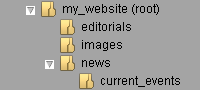
|
The main page of the website ("index.html") is put inside the main "my_website" directory, so the directory then becomes the "root" directory of the site (simply written as "/").
So the directory structure is now actually:
/ (the root directory containing index.html)
/editorials
/images
/news
/news/current_events
Hyperlinking with Relative URLs:
One period with a following slash (./) refers to a page, image or directory inside the current directory (it's not completely necessary to use this one).
Two periods followed by a slash (../) refers to the parent directory (or basically "up one level" is a good way to think of it).
So, in example, if I wanted to put a hyperlink in my index.html linking to a document named "news_1.html" inside the /news directory (/news/news_1.html) I could write it as either (both ways work):
<a href="./news/news_1.html">News1</a>
- or -
<a href="news/news_1.html">News1</a>
If I wanted put a link in the news_1.html document back up to the index.html the hyperlink would be written as:
<a href="../index.html">Index</a>
which means: "go up to the parent directory" (or "up one level") and there will be "index.html"
By that same token, if I had a page named "current_events_1.html" in the /news/current_events directory (/news/current_events/current_events_1.html) and wanted to link back to index.html I would want to go up two levels, so it would be written as:
<a href="../../index.html">Index</a>
And now, if I had a page named "editorial_1.html" (/editorials/editorial_1.html) and wanted to link to news_1.html from it the link would be written as:
<a href="../news/news_1.html">News1</a>
which means: "up to the parent directory" (up one level), then to the /news directory and in there will be "news_1.html".
Additional Notes:
Include a closing slash in URLs for domains (or any URL that ends in a directory name). In other words, they should be written as "http://www.thehowtoguides.com/" instead of http://www.thehowtoguides.com. When it's not included the browser will first try to retrieve a file and when it's not availabe it will send out a second request to fetch a directory (so "http://www.thehowtoguides.com/index.html" - without the closing slash - would be appropriate since it links directly to a file).
Also, URLs shouldn't contain spaces, so it's a good habit to use underscores instead.
Hyperlinking Images:
To a beginner, the code for a hyperlinked image may look a little complicated at first glance, but it really isn't. It's merely a normal hyperlink but the text shown for the link is replaced with the image (<img>) tag. Here's an example of a text link:
<a href="http://www.yahoo.com/">Yahoo!</a>
The text for the link is inserted after the closing bracket of the URL "http://www.yahoo.com/".
Now here's an example of a hyperlinked image:
<a href="http://www.7-zip.org/"> <img src="http://www.7-zip.org/logos/7zlogo01.png" width="88" height="31" border="0" alt="7-Zip" title="Get 7-Zip File Archiver!"></a>
Instead of text, the image for the link is inserted after the closing bracket of the URL "http://www.7-zip.org/".
I'll break down the code for the image tag by its attributes in the above example further:
First (obviously) the "src" refers to the source of the image, or where the image itself is actually located (or hosted) on the internet.
width and height - the dimensions of the image (this is necessary for valid code and a web browser can actually load a page faster if it knows how much space to reserve for the image).
border="0" - this just tells the web browser not to render a border outlining the image (it isn't completely necessary to include this).
alt - this is the alternative text shown in place of the image if the image isn't present or available (for whatever reason) - this is necessary for valid code.
title - the text that will be shown in the little tooltip that pops up when the image is moused over (this isn't necessary).
Additional Note:
When including images on a web page it is preferable to upload the image into a directory of your website and link to it relatively.
This will limit the requests to external servers and the image will load faster.
Linking to a Specific Section of a Page:
If you would like to link to individual sections or paragraphs on the same page you can create destination anchors within the page and link directly to them. To create a link at the bottom of a page to take the visitor back to the top for example, the destination anchor at the top would be:
<a name="top"></a>
The link at the bottom of the page would be written as:
<a href="#top">Back to Top</a>
A destination anchor can also be used to link directly to a specific section of a seperate page. For example, from your index.html you want to link directly to a section on the news_1.html page entitled "Strange News". You could create a destination anchor for the "Strange News" heading (a second level heading in this example) by writing it as:
<h2><a name="strange_news">Strange News</a></h2>
To link directly to the section from the index.html page the hyperlink would be written as:
<a href="news/news_1.html#strange_news">Strange News</a >
The W3Schools also explains that here: w3schools.com - HTML Links
A Note About Fonts:
Quite briefly, HTML (and similar languages) merely tell a web browser on the visitor's computer how to display/render a web page. Because of that, any fonts called upon in a web document need to be installed locally on the visitor's computer in order to be displayed on the web page. If the font isn't available locally, the browser will use what is set as its default font (usually "Times New Roman").
Whether or not an uncommon font is used it's a good idea to list alternatives in the style for the font. Example: <p style="font-family: OpenSymbol, arial, 'lucida console', sans-serif">text</p> ... so if the visitor doesn't have the OpenSymbol font on their computer then the browser would use arial (and so-on). (Fonts that have spaces in their names need to be enclosed in quotes.)
(The font-family style can be set in the body element for the entire document, I just used the paragraph tag in the above example for simplicity.)
A Couple of Additional Tips:
- When manually writing HTML code or adding to an existing HTML (or similar) document it's important to use the most basic text editor you have (Windows Notepad for example). Any other word processors (even Wordpad) can insert undesired hidden characters into the document (to record the formatting and the like).
- When saving a HTML (or similar) file using the "Save as..." option in Windows Notepad it's necessary to change the "Save as type:" at the bottom of the dialog box from "Text Documents (*.txt)" to "All Files" in the little dropdown menu.
That's it!

